Security
Your files stay yours. Here's how, in plain words.
How Sendya protects you
- Locked from start to end. Files go from your device to your other device, locked with keys only those two have. Our server only passes them along. It can't open them, and it never keeps them.
- Only devices you allow. A device has to be paired first, with a code or a QR code, and you press Allow when it pairs. On a team plan, colleagues can send to each other without pairing, only within the team and as its Owner sets.
- No account. No email, no password, no phone number. Nothing to steal from us.
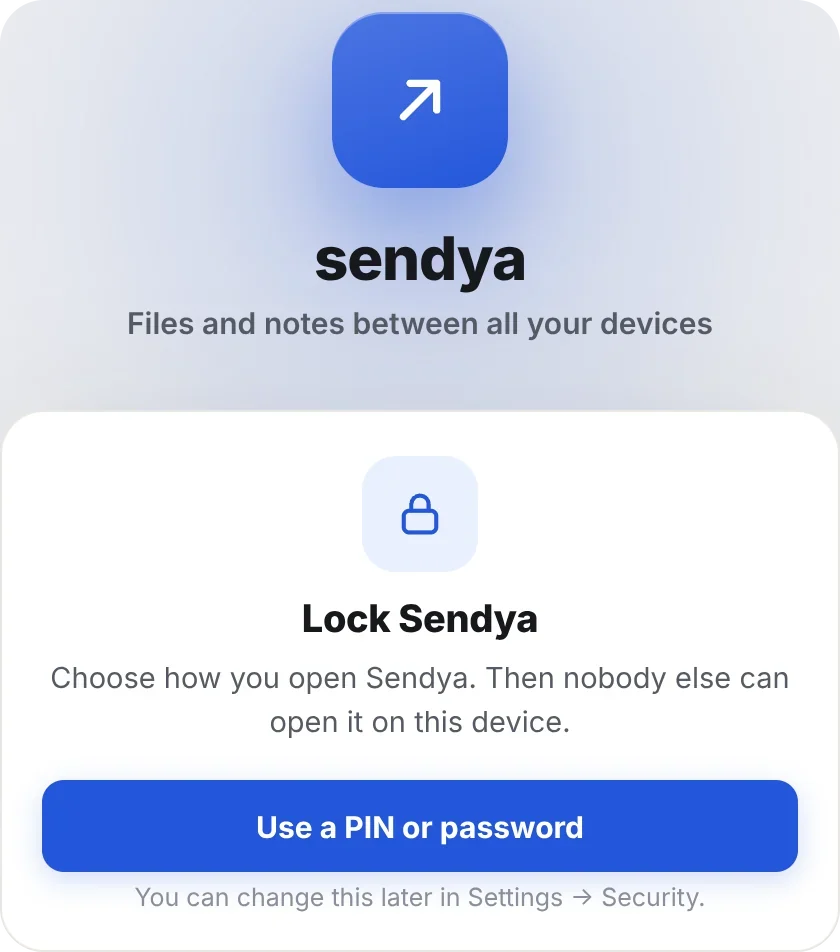
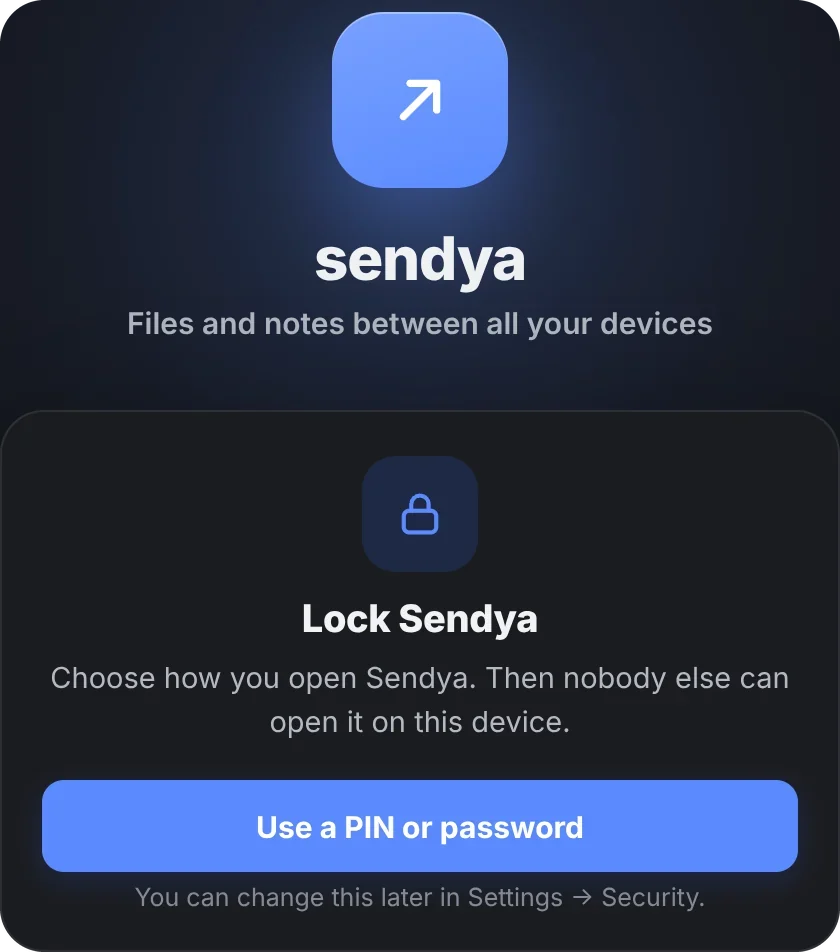
- The lock. Fingerprint, face or a PIN before Sendya opens. A new install asks you to set it up.
Do this now
Four things to do now. Then, if a device gets lost or stolen, you're ready.
- Lock Sendya. Then a stranger holding your phone can't open it. Go to Settings → Security → Opening Sendya.
- Trust your phone and your computer. Then each one can lock the other out if it's lost. Press ⋯ next to one of your devices → Make trusted device. How trusted devices work
- Save your recovery code. One code for all your devices and the plans you own. Go to Settings → Security → Show my recovery code. Put it in a password manager, or write it down. We can't see it, so we can't send it to you.
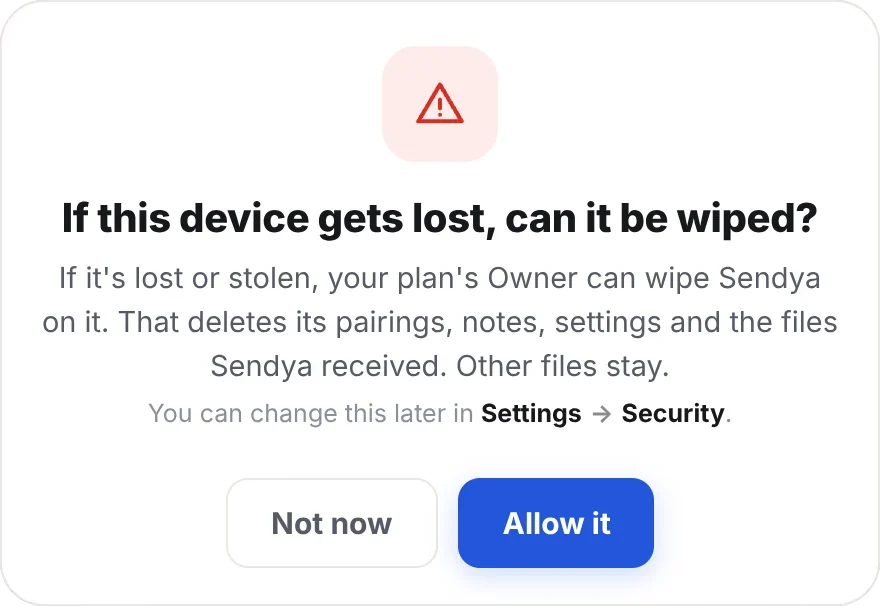
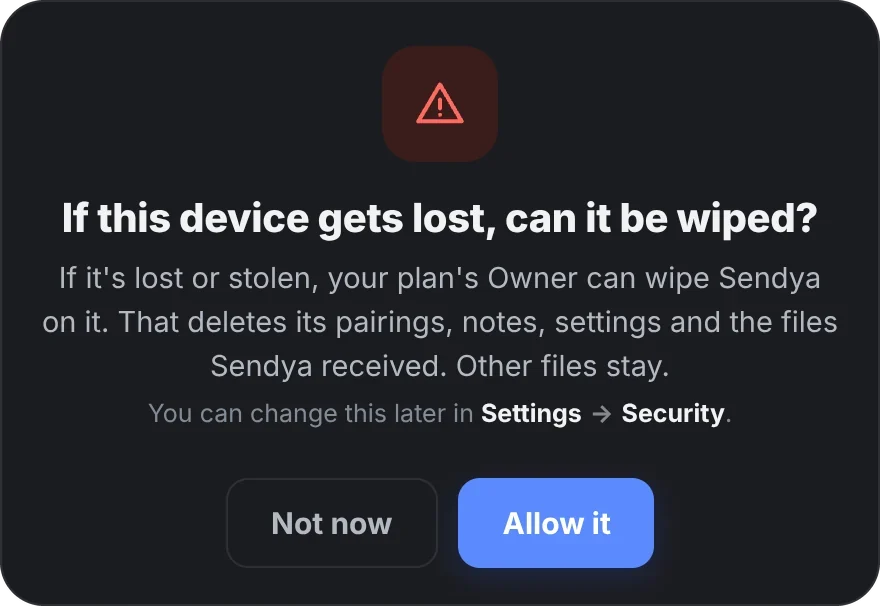
- Let your devices be wiped if they're lost. Each decides for itself. Go to Settings → Security → Let my trusted devices wipe Sendya here.
Trusted devices
Two of your own devices that look after each other — say, your phone and your computer. If one gets lost or stolen, the other locks it out of Sendya.
- Only your own devices. A friend's device can never be trusted. Both devices say yes, each behind its own lock: fingerprint, face or PIN.
- They look after each other. If one is lost, the other marks it lost: all your devices forget it, and the Sendya server shuts it out. If it allowed a wipe, Sendya's data and the files it received are deleted the next time it goes online.
- No trusted device at hand? Your recovery code does the same from any device, even a new one.
Set one up:
- Pair the two devices. When Sendya asks whose device it is, choose Mine.
- Sendya asks Trust each other? Press Trust each other.
- On the other device, press Accept, then unlock it with your fingerprint, face or PIN.
- Done. Each one now looks after the other.
Already paired? Press ⋯ next to the device → Make trusted device, then Accept on the other one. To undo it: ⋯ → Stop trusting.
A device was lost or stolen
- On a device it trusts, press ⋯ next to the lost one, then Lost or stolen…
- Tick Also wipe Sendya on it, if it allowed that.
- Done. Your devices forget it, and it can't use the Sendya server. When it goes online, Sendya on it is wiped. Its other trusted devices are told.
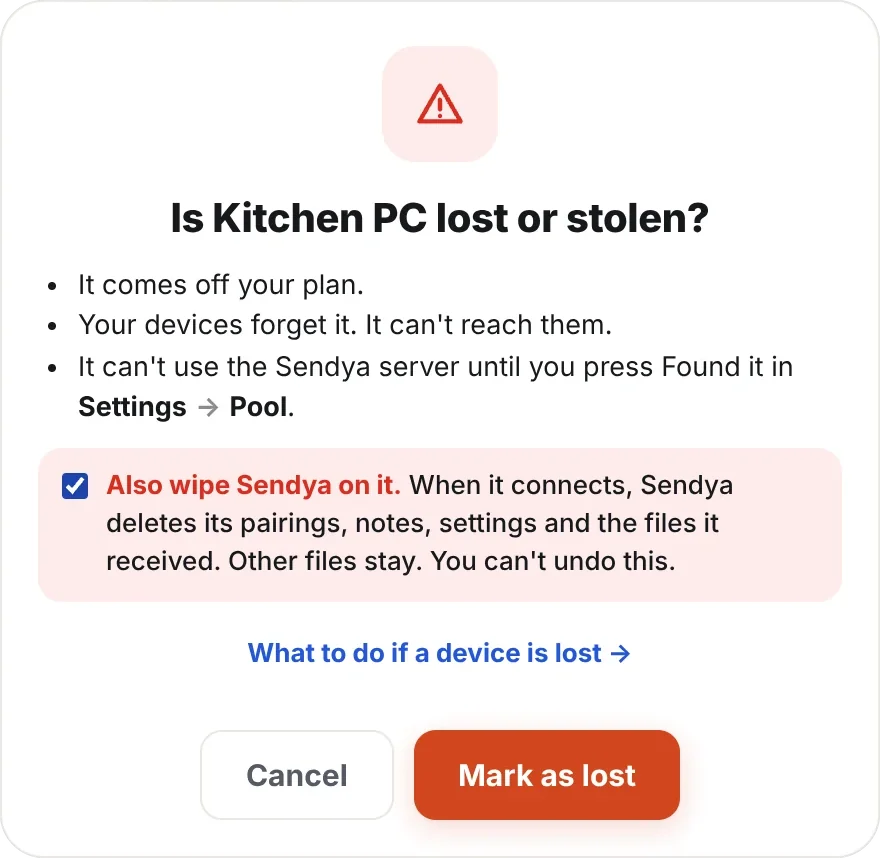
Found it? Settings → Security → Found it, as long as it wasn't wiped. On a team, its plan's Owner can also do it from Settings → Pool.
No trusted device at hand, or you lost every device
- On any device, even a new one: Settings → Security → Lost a device? Use the code. Type your recovery code.
- Pick the lost device, and mark it lost as above.
- Your recovery code also makes the new device the Owner of your plans.
- No recovery code and no device? Write to us with your plan number. We check the plan is yours and help you.
Good to know
- Sendya's wipe covers only Sendya: its data and the files it received. To erase the whole phone, use Find My on an iPhone or Find My Device on Android.
- Sendya can't find where a device is. It only locks it out and wipes Sendya on it.
- Keep the Sendya server on (Settings → Connections): it's how a lost device gets locked out and wiped.
- A red alert in Sendya you don't recognise? Press Act now and follow the steps.
- Lost your recovery code but still have one of your devices? Settings → Security → Make a new code. The old one stops working.
- We never store your recovery code. Our server keeps only a fingerprint of it, enough to check it, not to read it.
Found a security problem?
Email us () with “Security” in the subject. Please give us time to fix it before you tell anyone else. We'll keep you posted, and thank you by name if you like.
For the technical: devices talk over TLS and check each other's key both ways; pairing uses SPAKE2, so the code never travels over the network.